> ## Documentation Index
> Fetch the complete documentation index at: https://web2md.org/docs/llms.txt
> Use this file to discover all available pages before exploring further.
# Convert Pages
> Convert any webpage to clean, AI-ready Markdown in one click.
## Overview
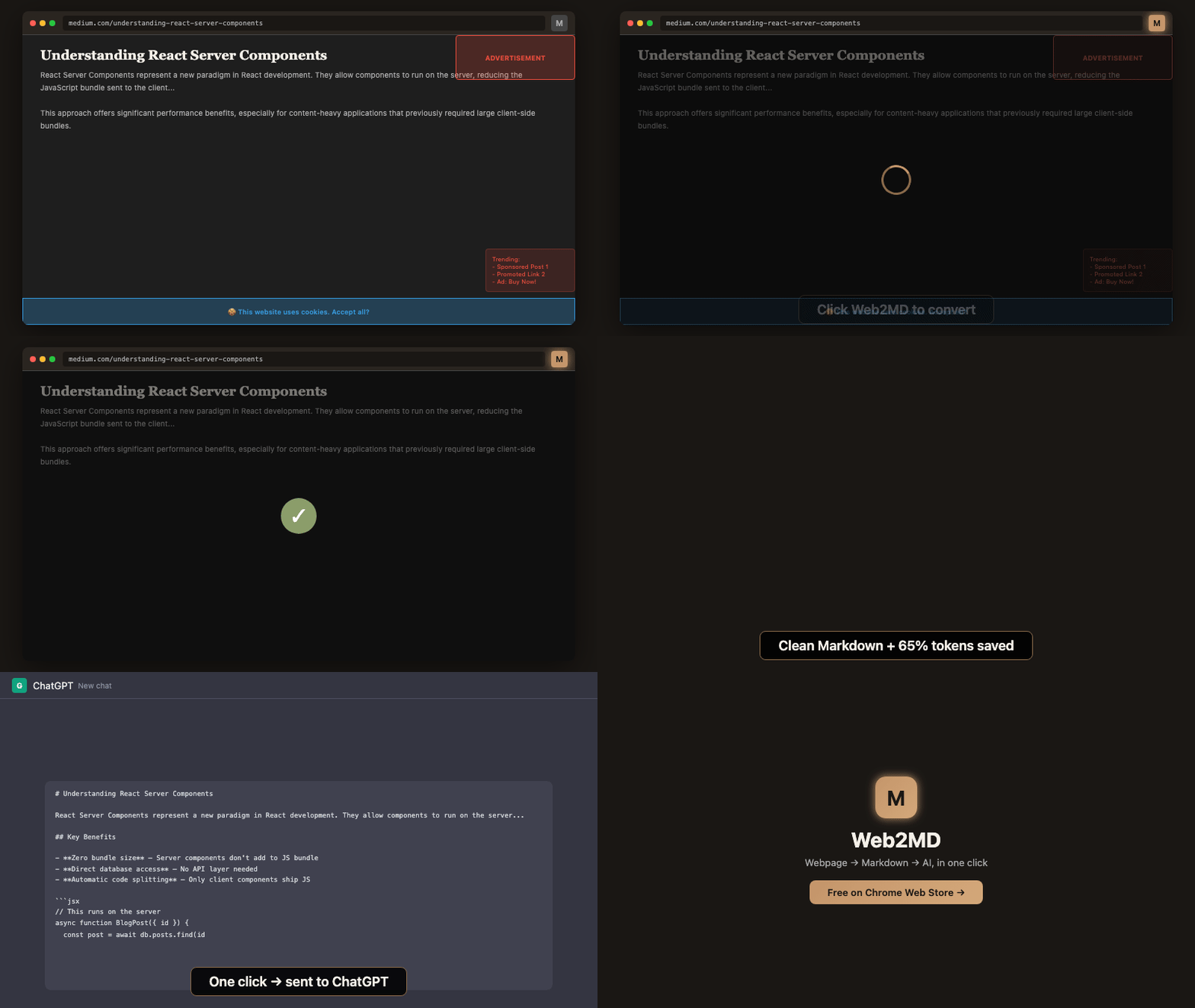
Web2MD's core feature is converting any webpage into clean Markdown. It strips ads, navigation, sidebars, and other clutter — leaving only the content you care about.
 ## How it works
Open the page you want to convert in your browser.
Click the Web2MD icon, press `Alt+M`, or right-click and select **Copy page as Markdown**.
Web2MD extracts the main content, removes clutter, and generates well-structured Markdown.
## Conversion output
After converting, you'll see a result panel with:
## How it works
Open the page you want to convert in your browser.
Click the Web2MD icon, press `Alt+M`, or right-click and select **Copy page as Markdown**.
Web2MD extracts the main content, removes clutter, and generates well-structured Markdown.
## Conversion output
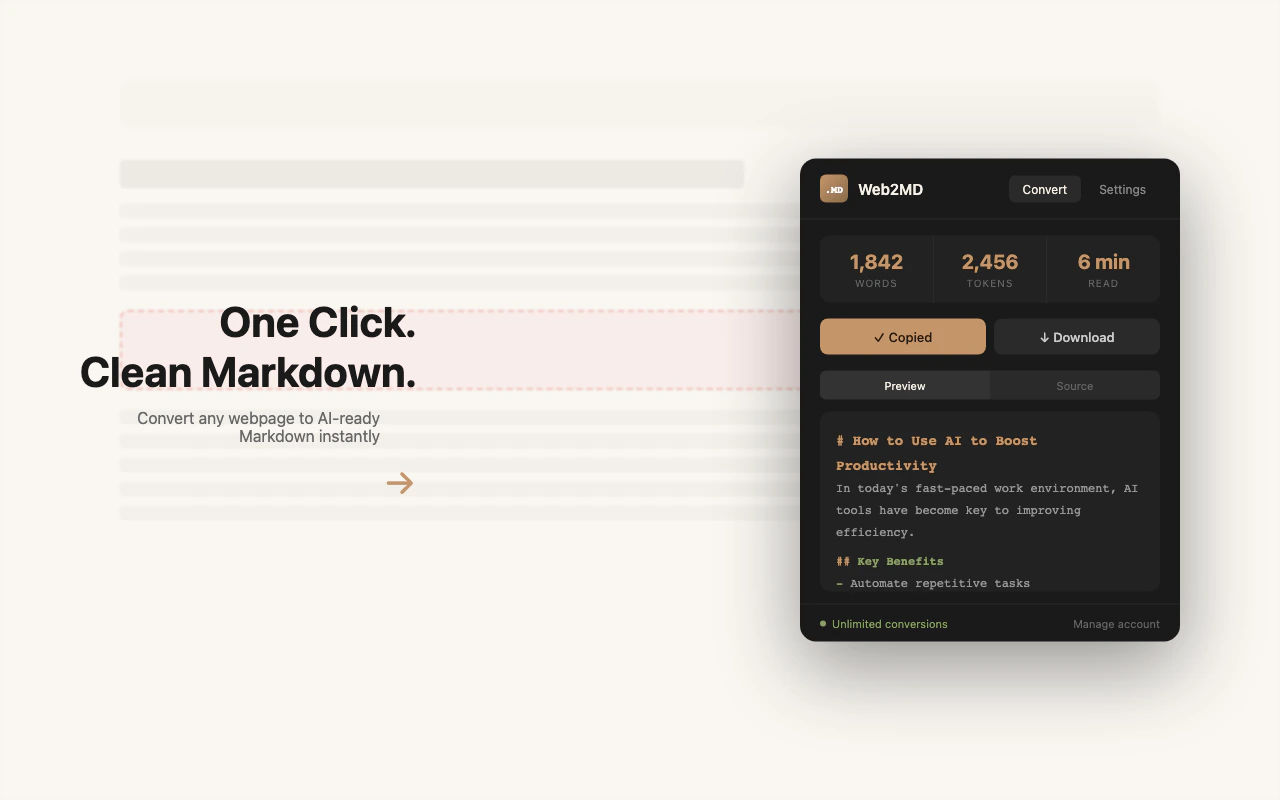
After converting, you'll see a result panel with:
 ### Stats bar
| Metric | Description |
| ---------- | ---------------------------------------------------------------------------- |
| **Words** | Total word count of the extracted content |
| **Tokens** | Estimated token count (avg 4 chars = 1 token) — useful for AI context limits |
| **Read** | Estimated reading time (based on 200 words/min) |
### Output actions
Copy the Markdown to your clipboard. Enable **Auto copy** in Settings to do this automatically.
Save the Markdown as a `.md` file with the page title as filename.
Send the content directly to Claude, ChatGPT, or Gemini. [Learn more →](/docs/features/send-to-ai)
Export to your Obsidian vault via `obsidian://` URI. [Learn more →](/docs/advanced/obsidian)
### Preview modes
Toggle between two views:
* **Preview** — Rendered Markdown with headings, lists, code blocks, and images
* **Source** — Raw Markdown text, ready to copy and paste
## What gets extracted
Web2MD uses a two-phase DOM cleaning process:
1. **Phase 1** — Always removes: `
### Stats bar
| Metric | Description |
| ---------- | ---------------------------------------------------------------------------- |
| **Words** | Total word count of the extracted content |
| **Tokens** | Estimated token count (avg 4 chars = 1 token) — useful for AI context limits |
| **Read** | Estimated reading time (based on 200 words/min) |
### Output actions
Copy the Markdown to your clipboard. Enable **Auto copy** in Settings to do this automatically.
Save the Markdown as a `.md` file with the page title as filename.
Send the content directly to Claude, ChatGPT, or Gemini. [Learn more →](/docs/features/send-to-ai)
Export to your Obsidian vault via `obsidian://` URI. [Learn more →](/docs/advanced/obsidian)
### Preview modes
Toggle between two views:
* **Preview** — Rendered Markdown with headings, lists, code blocks, and images
* **Source** — Raw Markdown text, ready to copy and paste
## What gets extracted
Web2MD uses a two-phase DOM cleaning process:
1. **Phase 1** — Always removes: `