

Overview
Web2MD’s core feature is converting any webpage into clean Markdown. It strips ads, navigation, sidebars, and other clutter — leaving only the content you care about.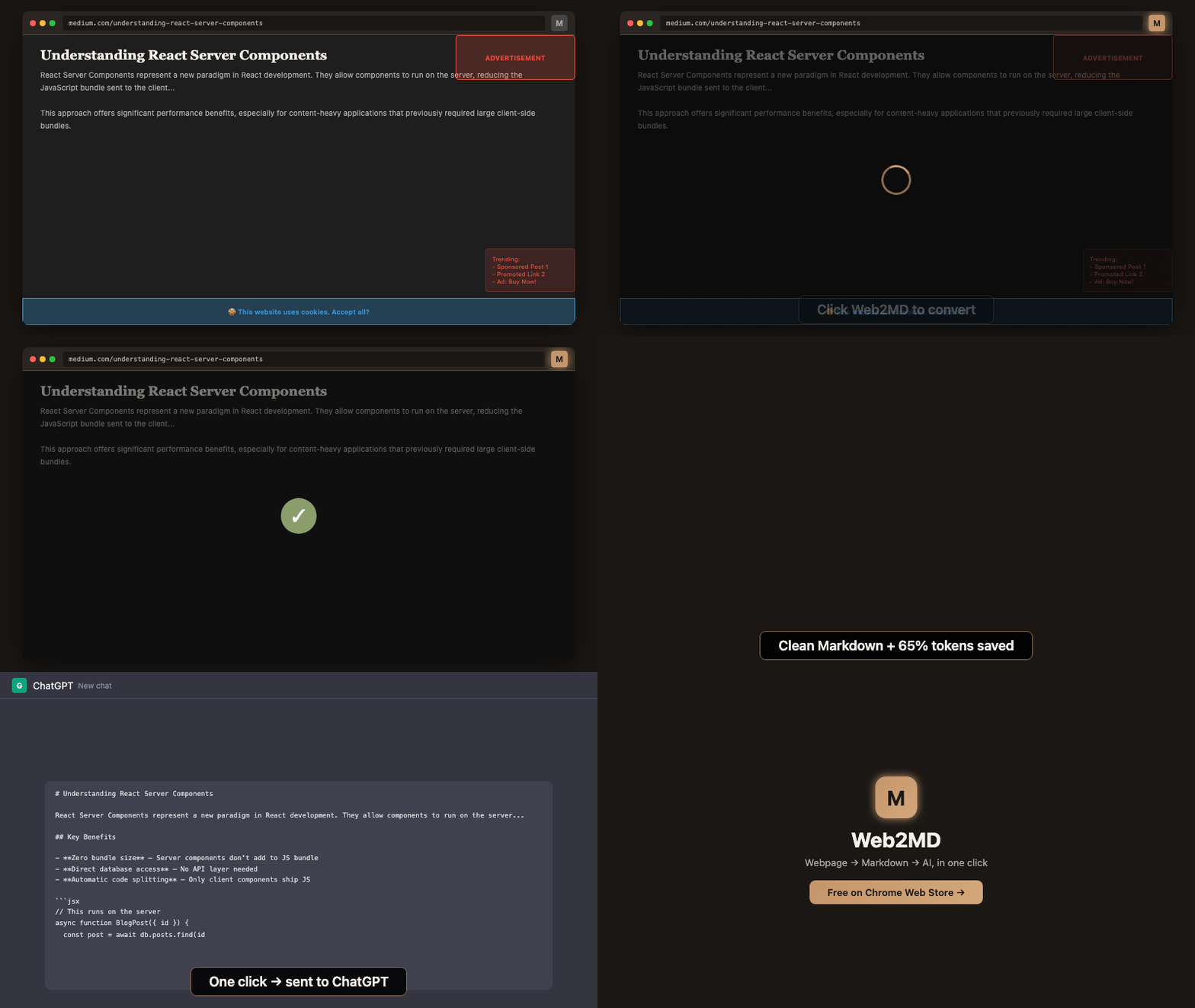
How it works
1
Navigate to any webpage
Open the page you want to convert in your browser.
2
Trigger conversion
Click the Web2MD icon, press
Alt+M, or right-click and select Copy page as Markdown.3
Get clean Markdown
Web2MD extracts the main content, removes clutter, and generates well-structured Markdown.
Conversion output
After converting, you’ll see a result panel with: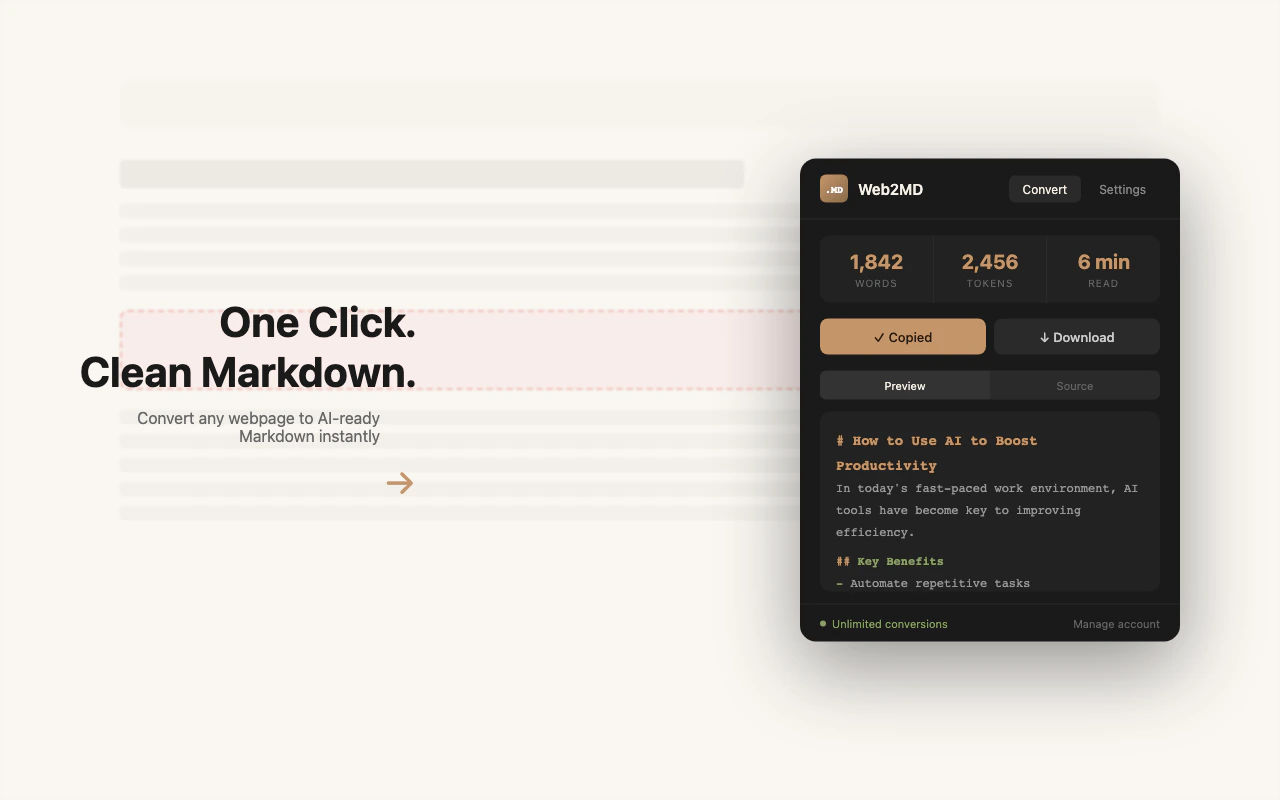
Stats bar
Output actions
Copy
Copy the Markdown to your clipboard. Enable Auto copy in Settings to do this automatically.
Download
Save the Markdown as a
.md file with the page title as filename.Send to AI
Send the content directly to Claude, ChatGPT, or Gemini. Learn more →
Save to Obsidian
Export to your Obsidian vault via
obsidian:// URI. Learn more →Preview modes
Toggle between two views:- Preview — Rendered Markdown with headings, lists, code blocks, and images
- Source — Raw Markdown text, ready to copy and paste
What gets extracted
Web2MD uses a two-phase DOM cleaning process:- Phase 1 — Always removes:
<script>,<style>,<nav>,<header>,<footer>,<aside> - Phase 2 — Removes block-level distractions (ads, sidebars, social sharing) while preserving inline elements
Content preserved
- Headings and hierarchy
- Paragraphs and text formatting (bold, italic, strikethrough)
- Lists (ordered and unordered)
- Code blocks with language detection
- Images with alt text
- Links (toggleable in settings)
- Tables
- Blockquotes
Metadata (optional)
When Add metadata is enabled in settings, the output includes:Selection mode
Select specific text on a page before converting to extract only the selected content instead of the full page. This works via:- The extension popup (click Convert with text selected)
- Right-click → Copy selection as Markdown
Keyboard shortcut
The shortcut works on any tab without needing to open the popup.